How to configure and start a Firesale
Configure a Firesale, preview the required Bit amounts, exempt special items, and let a channel point reward start the event.
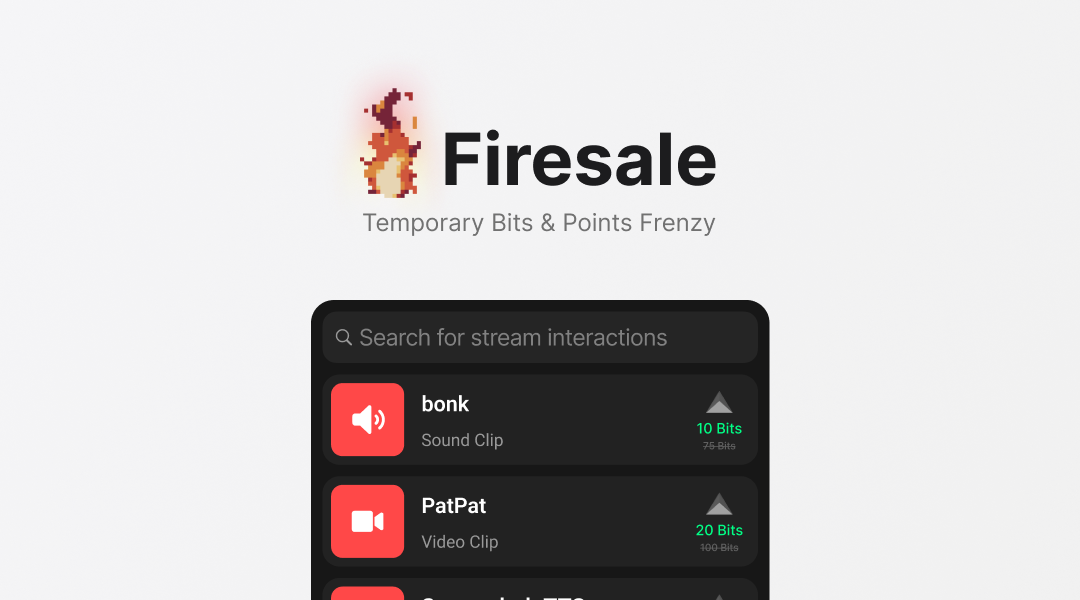
Firesale creates a limited-time event inside Creati's Twitch Extension. While it is active, eligible items use discounted Bit amounts and viewers see a countdown showing how long the event has left.
This guide covers the complete setup: choosing the discount and duration, previewing Bit-tier snapping, protecting special items, starting the event, and optionally connecting it to a channel point reward.
Before you start
Make sure you have:
- Installed and activated Creati's Bot from the Twitch Extension dashboard.
- Created at least one enabled extension item with a TTS, sound, video, or other interaction attached.
- Opened the Extension dashboard for the Twitch channel you want to configure.
If the extension is not installed yet, add Creati's Bot on Twitch before continuing.
Configure the event
Open the Extension dashboard and find the Firesale card. Select Configure to open the event settings.
Choose the discount
Use the discount slider to choose an amount from 10% to 99% off. The preview updates immediately and shows the Bit amount viewers will see for several common item tiers.
 10→5 bits*25→5 bits*
 100→25 bits250→50 bits*500→125 bits
 1000→250 bits
Twitch extensions use registered Bit tiers, so a percentage calculation cannot always produce an exact available amount. Firesale snaps the result to the nearest eligible tier and marks rows where the effective discount differs from the percentage selected.
Always use the preview as the final reference for the Bit amounts viewers will see.
Choose the duration
Select one of the duration presets or use the slider to choose a custom event length. Firesales can run from 15 seconds to 12 hours.
- Use 15–90 seconds for a quick burst after a win, milestone, or chaotic stream moment.
- Use 5–30 minutes for a special segment or community challenge.
- Use a longer duration when the Firesale is part of the theme for an entire stream.
Changes are saved automatically. If you adjust the configuration while a Firesale is active, viewers receive the updated settings.
Exempt special items
Some extension items may be too disruptive or too limited to include. You can keep their normal Bit amount by marking them as exempt.
- Open the item from the Extension dashboard.
- Enable Firesale Exempt.
- Save or close the item settings.
The item remains available during the event, but its required Bit amount does not change.
Start and stop a Firesale
Return to the Firesale card in the Extension dashboard and select Start Firesale. The card changes to its active state and displays the remaining time.
While the event is running:
- Viewers see a Firesale banner and countdown inside the extension.
- Eligible items display their discounted Bit amounts.
- Exempt items keep their normal Bit amounts.
- An interaction activated before the timer expires keeps its displayed discounted amount, even if processing finishes after the event ends.
You can end the event early by selecting Stop Firesale.
Let a channel point reward trigger it
You can place the trigger in your viewers' hands while keeping the configuration under your control.
- Open the Rewards dashboard.
- Create a new channel point reward or open an existing one.
- Add a feature and select Firesale.
- Choose the channel point amount and other reward settings you want.
- Save the reward.
When a viewer redeems that reward, the extension starts a Firesale using the discount, duration, and exemptions currently saved in the Extension dashboard.
The channel point reward starts the event; it does not change the amounts required for other channel point rewards.
Troubleshooting
The Firesale card does not appear
Confirm that the extension is installed and active for the channel, then refresh the Extension dashboard. The feature must also be available for your account.
The start controls are not available
Make sure at least one enabled extension item has an interaction attached and is not exempt. Firesale needs an eligible item before it can run.
A Bit amount differs from the percentage selected
This is expected when the calculated result falls between registered Bit tiers. Check the preview in the configuration screen for the actual amount that will be displayed.
A channel point reward does not start the event
Open the reward and confirm that the Firesale feature is attached. Then verify that the extension has a saved configuration and at least one eligible item.
Current limitations
This version changes Bit amounts for items inside Creati's Twitch Extension. It does not change the amounts required for regular Twitch channel point rewards.
There is currently no cooldown because Firesales are started deliberately from the dashboard or through a reward configured by the streamer. Cooldown controls will arrive alongside future automatic triggers.
For the story behind the feature and ideas for when to use it, read Introducing Firesale: Turn stream momentum into mayhem.